
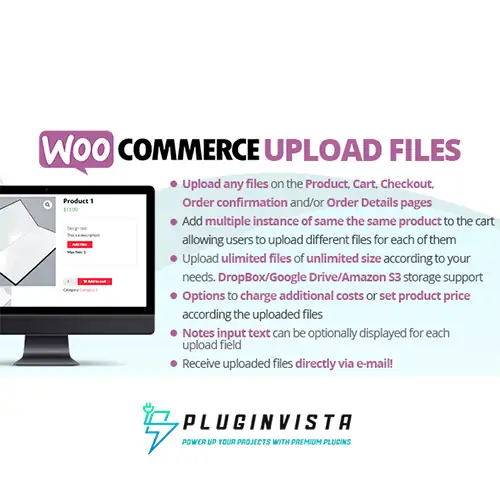

Key Features Of WooCommerce Upload Files
WCF now allows you to save uploaded files on your DropBox or Amazon S3 account!
Once enabled the special option on the plugin Options menu, whenever an order is placed at the checkout (or when the customer saves the uploads in the Order page), all the temporary uploaded files will be moved from the server to your DropBox/S3 account!
The plugin will create a folder in your DropBox account under Applications -> WooCommerce Upload Files -> site_name -> {order_id} where files will be saved. In case the upload is bounded to the product, you will find an additional subdirectory product_id-variation_id.
In case of connection errors with DropBox…do not worry! Files will be normally kept on a local server and you will be normally able to manage them via the order details page! You will receive a notification email reporting errors details.
NOTE: Keep in mind that temporary files are still saved on your local server, they will be deleted once moved to DropBox. Make sure that the max_execution_time (script max execution time) PHP setting is properly configured, otherwise, the File move process from server to DropBox may fail in case of big file handling.







Reviews
There are no reviews yet.